
November 18, 2021

Microsoft Loop - Quick Overview

Overview

At Ignite 2021, the most promising announcement was around Microsoft Loop. In this short blog, we will talk about what Microsoft Loop offers?

What is Microsoft Loop?

Microsoft Loop is a new app that combines powerful and flexible canvas with portable components that move freely and stay in sync across apps which enables teams to think, plan, and create together. Microsoft Loop consists of three elements.
  • Loop Components
  • Loop Pages
  • Loop Workspaces
Let’s explore more in detail!

Loop Components:

  • It’s an evolution of Fluid components
  • It can be as simple as lists, tables, notes, tasks, or as sophisticated as a customer sales opportunity from Microsoft Dynamics 365
  • It’s synced across all the apps – no matter which app you are using.
  • Examples: Maintain Tasks, Capturing Votes, Add Live Status from D365 Entities

Loop Pages:

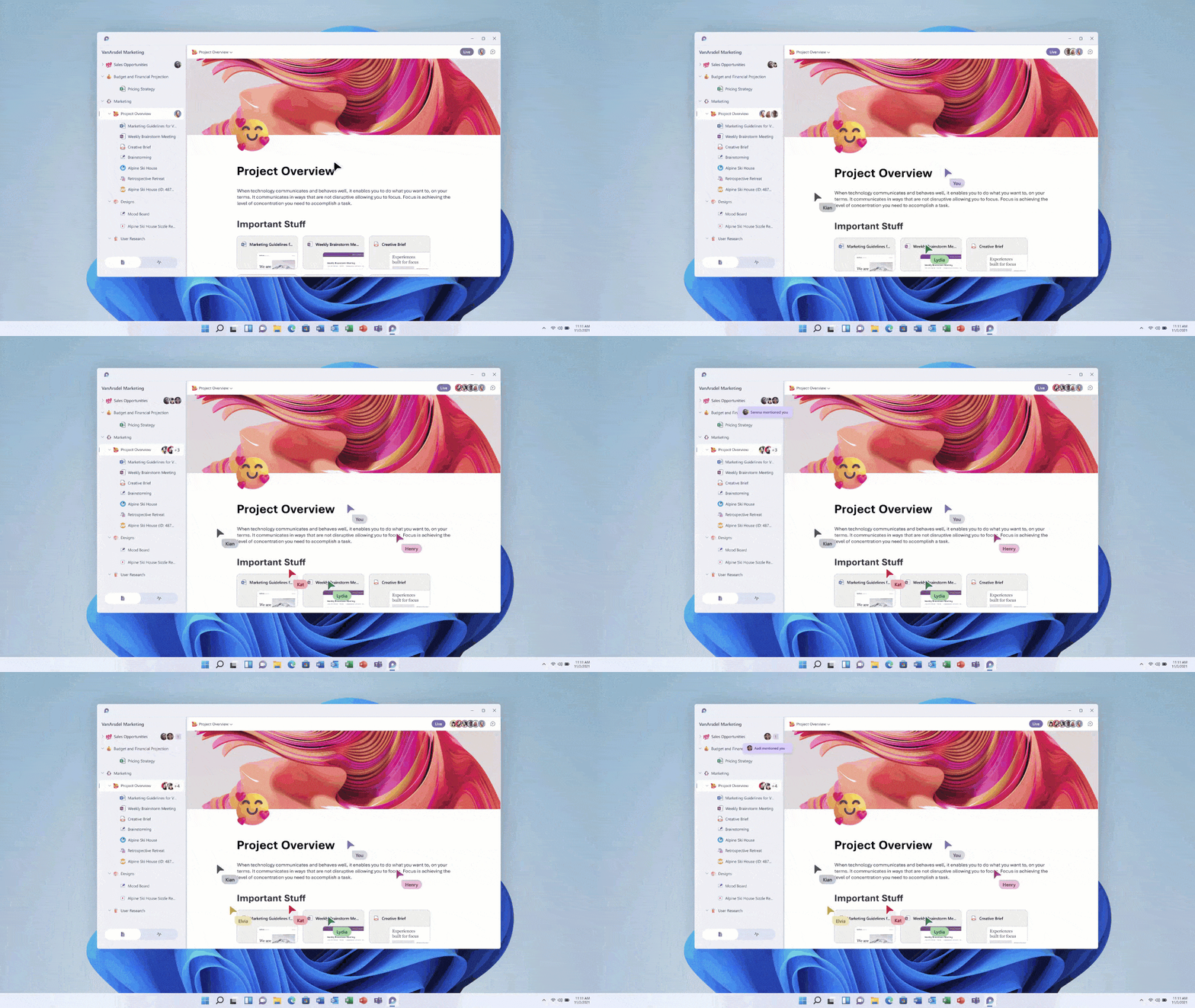
  • Loop pages are flexible canvases where we can organize our components and pull in other useful elements like files, links, or data. 
  • Pages are optimized for thinking together and getting work done. 
  • People can add their ideas, collaborate, add reactions and take proper decisions.
  • Examples: Live Discussions for Project.

Loop Workspaces:

  • Loop workspaces are shared spaces that allow us and our team to see and group everything important to our project. 
  • Workspaces make it easy for us to catch up on what everyone is working on, react to others’ ideas, or track progress toward shared goals. 
  • Teams can collaborate synchronously or asynchronously whenever inspiration strikes. 
References:

Conclusion:

It’s the first look at Microsoft Loop! Excited for another announcement? Stay tuned! 

If you have any questions you can reach out our SharePoint Consulting team here.

October 28, 2021

How to get list of web parts from Modern SharePoint Page?

Introduction:

In this blog, we will learn how can we get web parts added to the Modern Sitepage.
On the classic page, we can get a list of all web parts using "?contents=1" query string, but it will not work for modern web parts. For the modern web part, we need to use the PowerShell script.

Script:

Step 1: First we will read the URL of the site of which page we want to get the web parts.
 $siteURL = Read-Host "Provide site url";  
  • Here we are taking user input for site URL, we can also give static Site URL.

Step 2: Now we will connect to the site using the Connect-PnPOnline command. 
 Connect-PnPOnline -Url $siteURL  
  • This command will ask for credentials.

Step 3: Now we will get the page using "Get-PnPClientSidePage" command.
 $page = Get-PnPClientSidePage -Identity 'Home'  
Here we are using the Home page, we can use the name of any of your page.

Step 4: In $page will have all the information for the Home page. So now we will get all web parts available on this page as below:
 $webParts = $page.Controls   

Step 5: Now $webParts will have a list of all web parts available on the Home page. So we will use a loop to read each web part information:
 foreach($webpart in $webparts) {   
   Write-Host "WebPart Id "   
   $webpart.InstanceId   
   Write-Host "Title "   
   $webpart.Title   
 }  

Here we are fetching the web part ID and web part name. 

Step 6: Complete PowerShell script will be as below:
 $siteURL = Read-Host "Provide site url"   
 Connect-PnPOnline -Url $siteURL  
 $page = Get-PnPClientSidePage -Identity 'Home' #Get the page on which you are going to perform add and remove web parts.  
 $webParts = $page.Controls   
 #if there are more than one webparts   
 foreach($webpart in $webparts) {   
   Write-Host "WebPart Id "   
   $webpart.InstanceId   
   Write-Host "Title "   
   $webpart.Title   
 }  
This PowerShell will give output as below screenshot:


It will return Custom as well as OOTB web parts.

Conclusion:

This is how we can get a list of web parts. Hope this helps!

If you have any questions you can reach out our SharePoint Consulting team here.

October 21, 2021

Programming by Examples in Power Apps

Overview:

During this article, we will talk about new rolled out functionality by Microsoft this year in Power Apps Ideas. We will talk about “Programming by Examples” feature in detail. So, Let’s get started!

What do we mean by Programming by Examples?

“Programming by Examples” is a new AI Driven capability in Power Apps Ideas that automatically generate Power Fx Formula for us. This new feature is powered by PROSE (Programming by Examples and Natural Language), researched and developed by the Microsoft PROSE team. 
The same technology is already used in other Microsoft products as well, e.g., Flash fill in Excel, Intellicode suggestions in Visual Studio, and Table extraction in Power Query, etc.

Note:  At this moment, it is only available for US Region. 

Enable Preview Feature:

Go to File menu, Open Settings, click on Upcoming Features and make sure Ideas Panel is turn on!
Once we turn on the above feature, the Ideas Panel will be available for you!

  1. Please take a look at the following Gallery control which is showing account information.
  2. Now, we want to show the date as “June 3 2021”. Then how can we do that?
  3. The above example output generated the Power Fx formula automatically. Select the formula and check the result. It will show you the following result!
So, this is how we can apply “Programming By Examples” in Power Apps. 

Let’s check some more examples:

Apply PBE on Text Columns:

  • We want only First name from Full name. Then just provide your expected output and the formula will be generated automatically. 
  • Below is the end outcome!

Apply PBE on Date column by Training the example:

  • We want to display the Month name in 3 characters. So, how can we do that?
  • Select Label, click on “Train from Examples’
  • Provide sample outcome for few fields and click on “Get Ideas”.
  • This will generate Power Fx formula
  • Apply the formula and check the result.

Conclusion:

This is how Power Apps Ideas feature works in Power Apps. Isn’t that cool? Happy Power Apping!!

If you have any questions you can reach out our SharePoint Consulting team here.