Showing posts with label Approval Process. Show all posts

June 22, 2023

Resolving Attachment Issues in Power Automate Approval Action - 'Start and Wait for an Approval': Step-by-Step Guide


Introduction: 

Recently, while working on a Power Automate Flow, we encountered a specific requirement involving the need to send attachments in an Approval action. To address this, we utilized the “Start and Wait for an approval” action. Within this action, we clicked on “Show advanced options” to configure the attachments field from the dynamic contents array variable that we had created for appending the attachment contents.


Here we passed the ApprovalAttachments array consisting of JSON objects with two properties “Name” and ContentBytes. 

 {   
  "Name": @{items('Apply_to_each_2')?['DisplayName']},   
  "ContentBytes": @{body('Get_attachment_content')}   
 }   


The flow was executed without any errors, and I received the expected emailHowever, the attached files were missing from the email.  


It became evident that the attachments were not being successfully included in the email.  Therefore, in this blog, we will thoroughly examine the procedure for sending multiple attachments using the “Start and Wait for an Approval action within Power Automate. Our focus will be on resolving the specific issue that arises when attempting to send attachments using this particular action. Let’s dive into the step-by-step process and find a solution to this problem! 


Solution: 

Step 1: Initialize the array variable. 


Step 2: "Get attachments" action in Power Automate returns all attachments for given item in the array.


Step 3: To read all the attachment contents, click on the next step and then select the "Get attachment content". 


Step 4: Proceed to the next step and select theAppend to array variableaction inside the apply to each loop. 

- Now select the variable ApprovalAttachment that you have previously created

- Configure the value using the following JSON structure: 

  • Name: Set the display name from the dynamic content. 

  • Content: Set the attachment content of the Get attachment contents from the dynamic content. 


   {   
               "Name": @{items('Apply_to_each_2')?['DisplayName']},   
               "Content": @{body('Get_attachment_content')}   
   }   

It is important to note that you should use the “Content” instead of “Content Bytes” to avoid any issue in sending attachments. Now you will get an email with attachments too. 


Step 5: In this final action, go to the advanced options and set the dynamic content from the approval attachments array. 


Conclusion: 

So, this is how we can easily send attachments without encountering any issues using the approval action. 


If you have any questions you can reach out our SharePoint Consulting team here.

March 24, 2022

Power Automate - Approval Process not working from Outlook for Government Tenant

Scenario

While working on a requirement from a government client based out of Carolina, United States there was a requirement to create a Power Automate Flow for the Leave Application. 


We created an Automated Flow which would trigger when a new request is added by the employee, and they would have an option to select their manager. The Approval would be sent to the reporting mentioned manager and the manager would receive an email asking for the approval of the Leave Application. Based on their response (Approval or Rejection), the Flow would again trigger a response to the Leave Applicant that the application is accepted or rejected based on the manager's feedback and comments.


The Flow was working fine, but the client came back with feedback during UAT, specifying that every time, when the manager provides his/her feedback the Flow would navigate them from Outlook to Power Automate platform and need to submit the response again in that. And the feedback submitted from Outlook was not considered.


Resolution

The issue only occurred on the client's tenant, we tried various tenants but could not replicate the issue. Each tenant we tried would accept the response that was clicked on Outlook. 

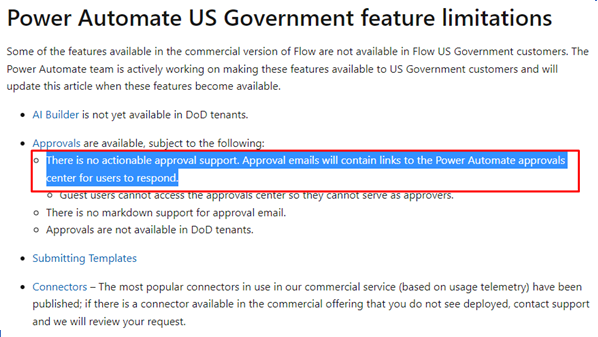
We looked at various articles and documents from Microsoft and found out that the behavior of Power Automate is based on the SharePoint Tenant. The Client was a US Government client and some of the features available in the commercial version of Flow are not available in Flow for US Government customers, so we could not cut down the steps.


Client tenant with the government domain:


Conclusion

When dealing with Power Automate, it is essential to check various functionalities that are supported by Power Automate and SharePoint based on the Tenant of the Client. 

Reference URL for the above-mentioned details: https://docs.microsoft.com/en-us/power-automate/us-govt

If you have any questions you can reach out our SharePoint Consulting team here.