Showing posts with label Performance. Show all posts

February 6, 2020

Measure Power Query Performance using Diagnostics Tool in Power BI

Overview:
In this article, I'll walk through on how we can measure performance of Power Query Report using the Diagnose Tool in Power BI. Microsoft has just launched this new feature in Power BI - December 2019 update.

Real-Life Use-case and Scenario:
There are the scenarios or requirements where we need to apply many operations (e.g., Change the data types, Create calculated columns, Perform some M functions etc.) within Power Query Editor.

Sometime, the performed operations take time to load the data, resulting degradation in performance.

To improve the performance, we need to identify which part of the query is taking higher amount of time. Based on that analysis, we can enhance the formula to improve Power Query performance.

So, let’s see how we can achieve this!!

Step 1:
Please make sure that Power BI Desktop is updated with the latest version (December 2019 or later).
In Power BI Desktop tool, From File, select Options and Settings and click on Options.

This will open a Preview Feature. Make sure that the feature - "Query Diagnostics" is activated.

Step 2:
Open the Power BI report for which we are facing performance issue.
From Home, select Transform data. This will open the Query Editor window.

Here, we have four steps in our query editor window.

Now, let’s check which step is taking more time to execute.

Step 3:
Go to Tools Menu. We have following 2 Group Options here.
  • Step Diagnostics
  • Session Diagnostics


Step Diagnostics:
Here, we can measure the performance of an individual step. Suppose, if our Power Query has 15 steps and we only wish to measure the performance of step #12, at that time this one is best suitable option.

Session Diagnostics:
With this option, we can measure the performance of the entire report covering all the steps of Power Query.

Here, we will perform both the actions and try to analyze the data.

Step 4:
Let’s first perform “Session Diagnostics”.
Click on “Start Diagnostics”.

Now, Click on Refresh All data.

Once data is refreshed, click on “Stop Diagnostics”.


Step 5:
When we stop diagnostics, this will add two new tables as a part of Query Diagnostics.
One represents Overall diagnostics and the other represents Detailed diagnostics. Let’s click on detailed diagnostics.

Here, we can see all the steps listed with the time taken for each execution.

From the result, we can easily find out which step is taking the more time.

Also, if we have used any calculated column or condition-based formula, this will also show how much time is taken by that process.

Step 6:
Let’s say if we wish to measure the performance of the specific step, then select the appropriate step from the Query Window, then click Diagnostic Step.


This will add following step(s) which will represent the diagnostics data.

Conclusion:
This is how, we can easily measure the performance of Power Query. Isn’t it amazing?

Happy Reporting!! 

If you have any questions you can reach out our SharePoint Consulting team here.

June 13, 2013

SharePoint Diagnostic Studio

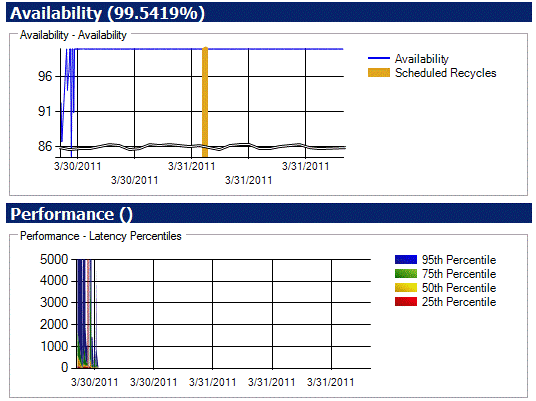
SharePoint Diagnostic studio is widely used to produce different reports on capacity, performance, usage etc.
The SharePoint Diagnostics Studio provides a wide variety of reports intended to address the most common issues impacting capacity, performance, availability, and usage that can be used independently or together to identify and isolate issues occurring in a SharePoint environment.
SharePoint Diagnostic Studio (SP Diag 3.0) can be used in local farm as well as servers. User should have admin rights to access to view reports. It is also required that user should have access of SQL server database. There are some other configurations required to view proper reports by this tool.
e.g.


  • Microsoft .net frame work 3.5
  • .Net Chart controls for .net frame work 3.5
Follow these steps to configure your project and get different reports.
  • Open SharePoint Diagnostic Studio with admin rights (Run as administrator).
  • You can see home page with menu as shown in above image.
  • Click on new project to configure your server for SharePoint Diagnostic studio.
  • Click on Create project.
  • If you get any error regarding invalid access or cannot access the local farm, then Open SharePoint Management Shell with Admin rights (Run as administrator) and run following Commands.
    • Enable-PSRemoting –force
    • Enable-WSManCredSSP -role Server –force
    • Set-Item WSMan:\localhost\Shell\MaxMemoryPerShellMB 1000
    • The remotesigned execution policy must be enabled on the farm server
      • Set-ExecutionPolicy RemoteSigned
  • Now Open SharePoint Diagnostic Studio with admin rights (Run as administrator).
  • Create new project again. Now it should create project without any error if you have access of SQL server.
  • If any error occurs regarding Usage Application database, then it indicates you don't have rights to SQL server.
  • Once project is created it will shows a page with different sections as below.
  • Report pane
  • Report Toolbar
  • Report Display pane
  • Filter pane
  • Data Display pane

If you have any questions you can reach out our SharePoint Consulting team here.

May 10, 2012

Performance analysis: Part 2

In previous post we used Stopwatch object in order to compare time taken by SPList.​ItemCount and SPList.Items.Count. Here are additional things to add in list.
  • If you are using SPList.Items.Add, start using SPList.AddItem. Since reference to SPList.Items properly will load list data it will not perform good.
  • If you are accessing list, try to use caml query to access it and always use RowLimit and view field properties to limit output to exactly what you want.
  • use ContentIterators in place of foreach when you want to iterate list items.
If you have any questions you can reach out our SharePoint Consulting team here.

April 17, 2012

Performance analysis: Use SPList.ItemCount instead of SPList.Items.Count

Here is the code that can measure performance between two:

   1:  Stopwatch sw = new Stopwatch();
   2:   
   3:              using (SPSite site = new SPSite("http://site/"))
   4:              {
   5:                  using (SPWeb web = site.OpenWeb())
   6:                  {
   7:                      SPList list = web.GetList("/Lists/list");
   8:                      long totalMemory = 0;
   9:                      long totalCollectionCount = 0;
  10:                      Console.WriteLine("Good test");
  11:                      totalMemory = GC.GetTotalMemory(false);
  12:                      totalCollectionCount = GC.CollectionCount(0);
  13:                      sw.Start();
  14:                      Console.WriteLine("item count:{0} ", list.ItemCount);
  15:                      sw.Stop();
  16:                      Console.WriteLine("Total time taken:{0}", sw.Elapsed);
  17:                      Console.WriteLine("TotalMemory:{0}", GC.GetTotalMemory(false) - totalMemory);
  18:                      Console.WriteLine("CollectionCount:{0}", GC.CollectionCount(0) - totalCollectionCount);
  19:   
  20:                      GC.Collect();
  21:   
  22:                      Console.WriteLine("\nBadTest");
  23:                      totalMemory = GC.GetTotalMemory(false);
  24:                      totalCollectionCount = GC.CollectionCount(0);
  25:                      sw.Start();
  26:                      Console.WriteLine("item count:{0} ", list.Items.Count);
  27:                      sw.Stop();
  28:                      Console.WriteLine("Total time taken:{0}", sw.Elapsed);
  29:                      Console.WriteLine("TotalMemory:{0}", GC.GetTotalMemory(false) - totalMemory);
  30:                      Console.WriteLine("CollectionCount:{0}", GC.CollectionCount(0) - totalCollectionCount);
  31:   
  32:                      Console.WriteLine("Press Any key to exit...");
  33:                      Console.ReadKey();
  34:                  }
  35:              }
Results of your testing will depend upon items in list for Items.Count but it will be constant for Items.ItemCount

If you have any questions you can reach out our SharePoint Consulting team here.