
May 14, 2020

How to overcome URL length limitation while fetching data using REST API in SharePoint?

Problem Statement:

Sometimes we might need to fetch data from long URL containing more filters while using REST API. REST query allows max –length of URL is 2,048 characters. If you exceed this limit, will throw 404 error in the code. let's check out how we should overcome this issue.

Analysis:

When we execute the query with URL having less filters & columns and thus having URL length less than the limit, we can get the response correctly:

But if we keep on increasing the filters & columns in REST API, once URL exceeds the limit of 2048 characters, we should start getting 404 error as shown below.

So, I thought of checking the URL with same filters in SharePoint directly, would it give same error? Surprisingly,  I found that SharePoint shows the results correctly with same numbers of filter and even more.

Technical Solution:

My analysis got me on the conclusion that the request is getting 404 caused by browser execution limitation of REST API and is not the issue from SharePoint end. So, we need to find a way through which we can send query to SharePoint and execute without browser itself.  So, I thought of using Batch API option for the same. I followed below steps to execute long URL successfully:

    Step 1: Load BatchUtils script into browser.


      Step 2: Verify BatchUtils loaded and Run in browser.


     Step 3: Prepare data for BatchUtils.
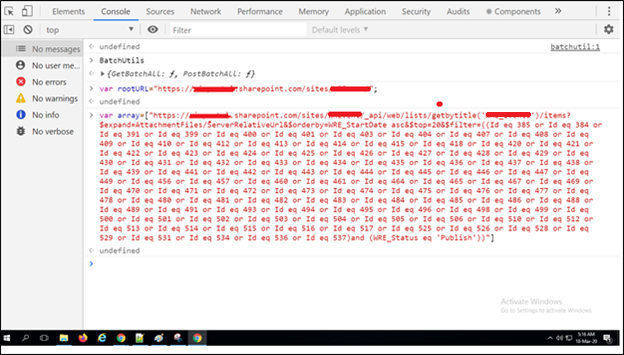

·         You need to specify Root Site URL of SharePoint tenant.
·         Push Long URL in array.

     Step 4: Request for fetch data using BatchUtils.


·         Here, you go! get the results without any error.

Note: We can use BatchUtils in Custom SPFX Web Part.


Below are useful reference links which helps us in calling Batch API in SharePoint Online and Run Code snippets direct in chrome DevTools.

If you have any questions you can reach out our SharePoint Consulting team here.

May 12, 2020

How to Call a Child flow from the Parent flow – Part Two

Introduction
In this article, we will see how we can create a Child Flow which is triggered from the Parent Flow. In the earlier blog, we discussed the business requirements and created a Parent Flow.

Now, let’s create a child flow in the same solution where we have created our Parent Flow.

Step 1: Add HTTP Trigger Action. From action select, "When a HTTP request is received".

We need to add Request Body JSON. Click on Generate from sample showing in the above screenshot. This will open below modal. We need to add sample JSON data to generate JSON Body. Add below JSON and click Done.

 {"Name" : "XYZ", "Experience" : 1, "Salary" : 20000, "Pay Scale" : 0.02, "ID" : 1 }  


So, here we need Name, Experience, Salary, Pay Scale and ID columns from Parent flow.

Step 2: Now, we need to multiply Salary with the Pay Scale. Add Compose Action and write logic to multiply Salary and with Pay Scale.

 mul(triggerBody()?['Salary'], triggerBody()?['Pay Scale'])  


Step 3: Now, add an action to update the item. Here in the Pay Scale Result field, we are passing the output of compose action method.
We also need to make sure that Is Trigger value is set to "No" otherwise the parent flow will continue running in infinity.

Step 4: After Update item action add “Respond to a PowerApp or Flow” action. Add this action to parallel branch.

In Success Action (left side action in above step), click ellipses and click "Configure run after" as shown in below screenshot.

Select "is successful" checkbox and click on done.

Same way, let’s configure the failure action. In Failure action set below options.

So, our child flow has been created successfully.

The above flow will return the variable to the Parent flow.

Conclusion: This is how, we can trigger child flow from the parent flow.

If you have any questions you can reach out our SharePoint Consulting team here.

May 4, 2020

How to create a Drill Through Button in Power BI?

Overview:
In this article, we will learn about one of the most important features rolled out in March 2020 Power BI Desktop update which is – Drill Through as an Action for Power BI Buttons.

What is Drill Through Action for Button in Power BI?
With March 2020, Power BI Desktop update, the new action for Button has been rolled out – “Drill Through (Preview)”. This action type creates a button that drills through to a destination page to get details that are filtered to a specific context.

Real-life Example:
We have created the following charts in our Power BI report.
   - Count of Project Tasks by Status.
   - Count of Project Tasks by Month.
   - Also here, we have created a button to view the detailed tasks (by status).

When the user clicks on the button - See More, the user will be redirected to the detailed view of the data with all the filters applied for the same context.

So, now let’s get started to see how we can achieve this.

Step 1: Setup the Home page, showing the information of Count for Project Task by Status and Count for Project Task by Month.

Step 2: Setup the Detailed Page, showing detailed information with a table visualization to show project tasks with its Status, Start Date and End Date.

Step 3: We want to drill through using the Status from the Page1. So, in Page 2 > first we need to add Drill through parameter.

Drag, a Status column from the Fields pane to Drill through the section.

Step 3: Now, add a button to Page 1 (Home Page).

Turn on Action and add the following information.
 - Type = Drill through (Preview)
 - Destination = Detailed Page (Page 2 which we have created in Step 2).

Step 4: Now, select the circular arc from the “Count of Project Task by Status” visual. This will enable the button.

Press Ctrl + Click to redirect to the detailed page. This will drill through us to the Detailed Page.

This will also pass a filter context as well. So, in a detailed page, the user can view filtered detailed data.

Conclusion:
This is how we can create a Drill Through button in Power BI. Happy Reporting!!

If you have any questions you can reach out our SharePoint Consulting team here.